
Upon logging into the Merchant Portal (click here to reach the login page), you will be directed to the Payments Module.
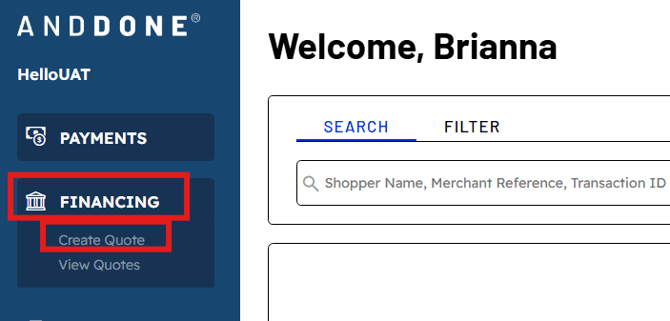
Simply click on Financing and then Create Quote on the left side menu bar in order to create a new premium financing quote.
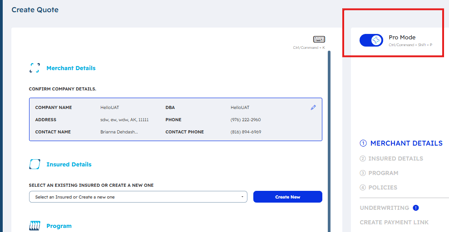
Pro Mode Tip: Before you start quoting enabling Pro Mode found in the upper right hand corner of your Create Quote screen. This streamlines your quote workflow.
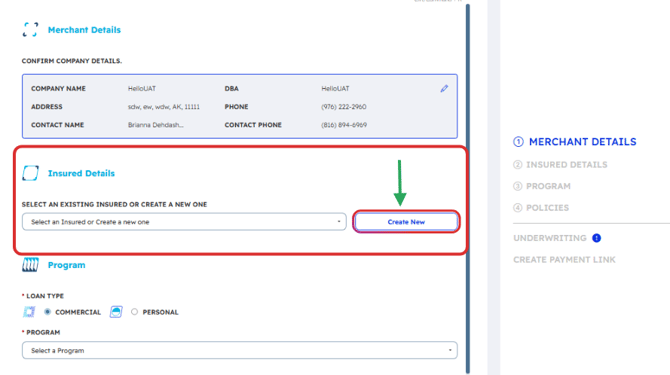
Enter Insured Details, click Create New
Then enter required Insured details- as indicated with an asterisk.
We recommend providing your insured's email address and mobile number, to allow for streamlined email and text communication capabilities.
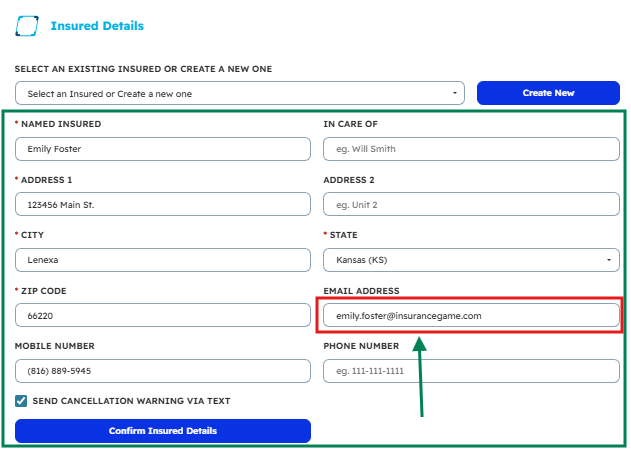
Once entered- review and confirm details
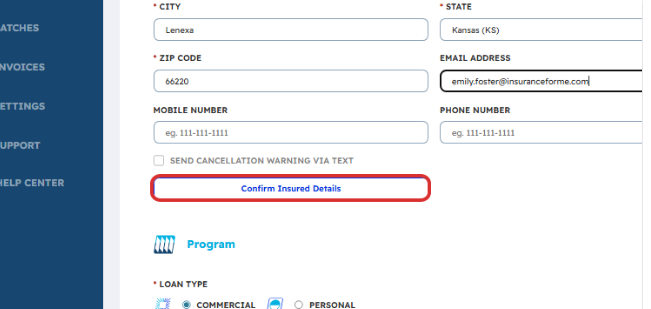
Next you will select your Program, select a Policy, or Create a New policy
Questions about financing details- e.g. Program, Policies, & underwriting? Please reach out to your IPFS Account Executive- your financing expert!
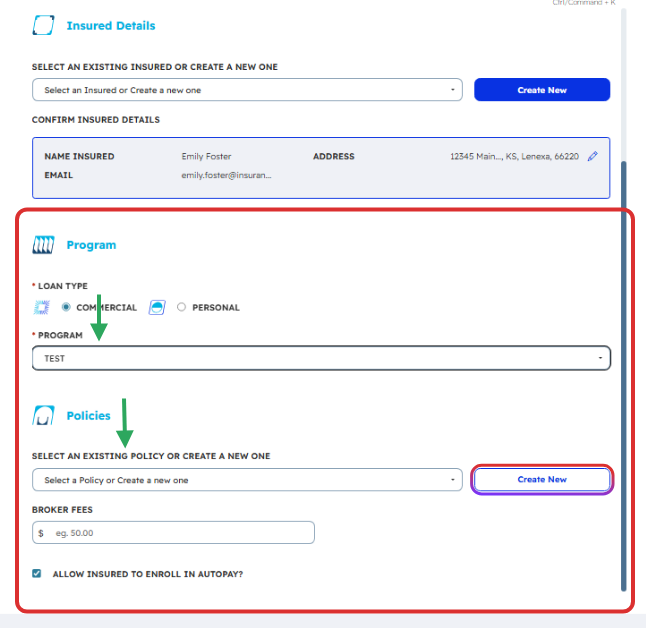
When creating a new Policy you will need to fill out the required fields:
-
Preferred Carrier
- To add a carrier to your preferred list, email the carrier’s name and physical address to Onboarding@anddone.com. Please allow extra time for review and portal mapping.
-
Coverage type
-
Premium
-
Effective & Expiration date
-
Cancel Days
When selecting a General Agent (GA) your preferred IPFS GA list will populate.
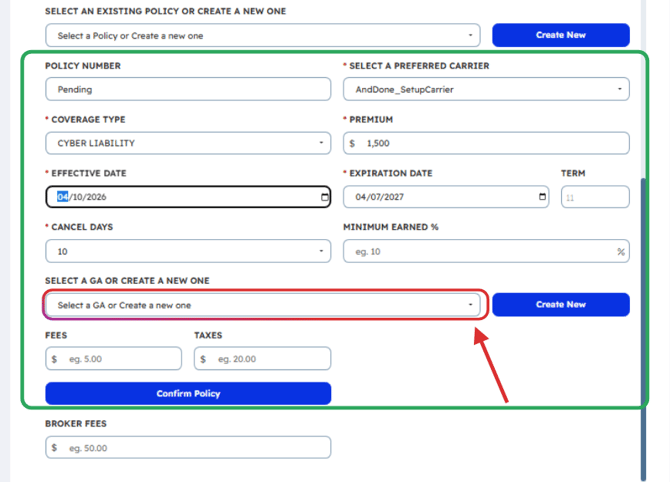
You have the ability to Create a new GA that is not already included on your preferred list. You may also email the General Agent’s name and physical address to Onboarding@anddone.com.
Please allow additional time for IPFS Acceptance team to review the new GA submission.
Next enter Fees, Taxes, and Broker Fees
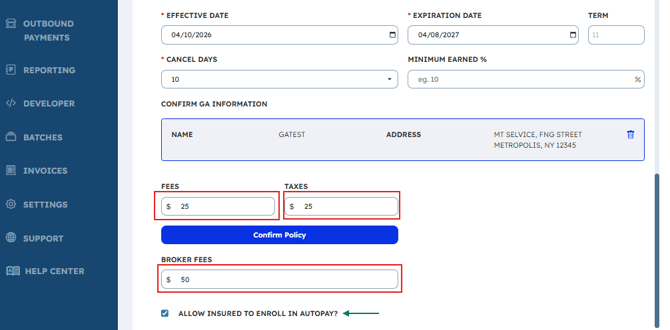
Allowing your insured to Enroll in Autopay will be automatically defaulted, you may uncheck this box if you do not want to offer autopay enrollment options to your insureds. However, we recommend always offering Autopay options to your insureds.
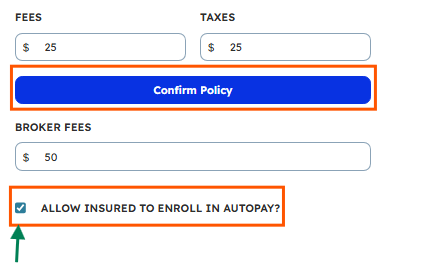
Once you have entered Taxes & Fees -click on Confirm Policy

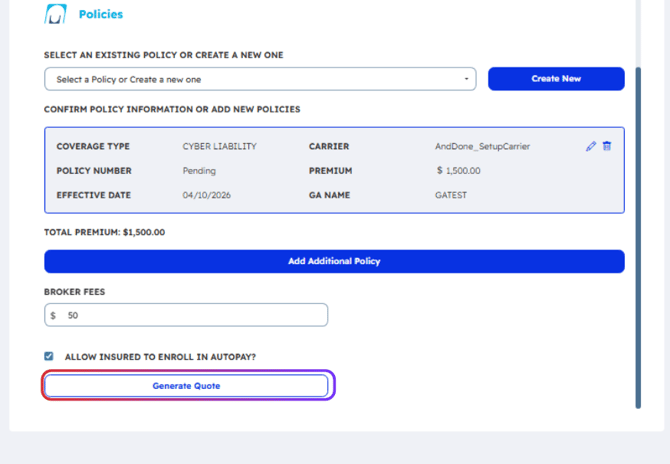
Review your policy details (to add an additional policy click Create New).
Click on Generate Quote
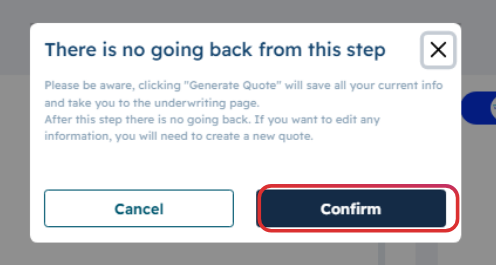
Popup box will appear reminding you that you cannot edit the policy details once you click confirm.
Now it's time to create the Payment Link for your Quote
-
Enter your References & Purpose of Payment
Purpose of Payment is pre-populated, however you may edit this field per your preference.
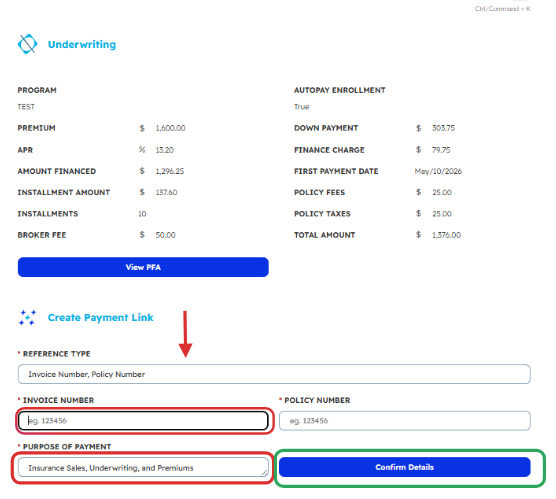
Confirm Details
Now review the Payment Link for your Quote
Notice the Edit pencil in the upper right hand corner. Common items to edit might be the adjusting how many days you want the payment link to be valid or Do you want to offer Pay in Full option- True/ False?
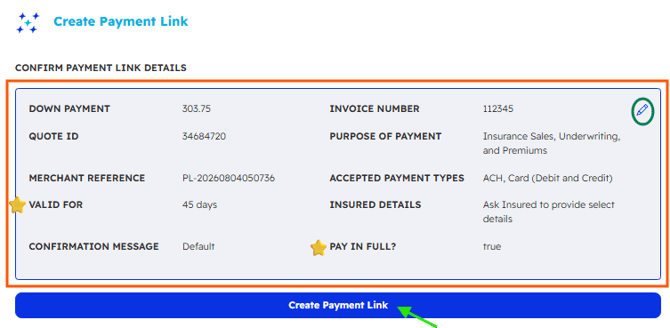
Once confirmed click Create Payment Link
Final step (yeah!) is click Copy Link- then Paste and send to your insured!
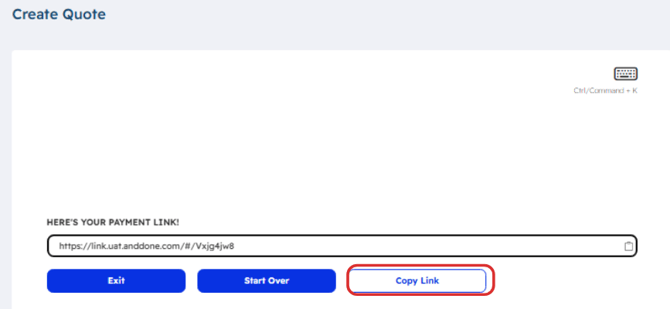
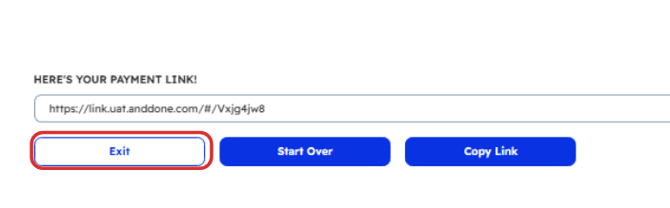
Then Exit and return to your Financing page.
Your Quote will now appear in your Quote queue.
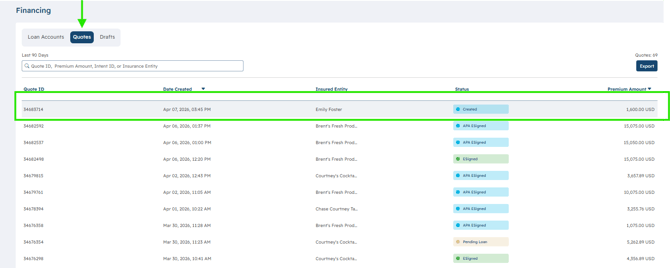
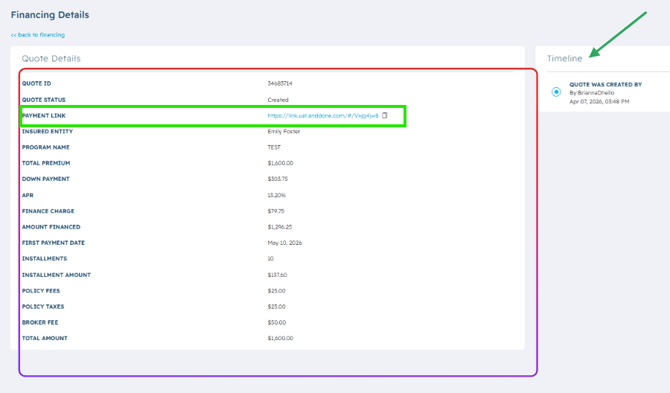
Click on your quote to review the details, recopy the Payment link (if needed), and refer to the Timeline.
Timeline will continue to update and track activity as your insured submits the down payment, completes autopay enrollment, and electronically signs the premium finance agreement.
If an exception error appears while creating a quote, as shown in the screenshot below, reach out to your IPFS Account Executive to review the quote and make any necessary adjustments. Please note you will need to pivot and continue quoting on IPFS.com, not in the Payments Portal.

Related Articles:
- How to add a carrier or GA to the preferred list when quoting on the Payments Portal?
- How do I view Financing Loan Account Details, Quotes, and Draft Quotes?
- Autopay explained
- Paying via Payment Link - Premium Finance
- Saving and Resuming a Draft Quote - Premium Financing
- Payment Links for Premium Financing in the Merchant Portal
If you need assistance or have any further questions, please click here to contact our support team.