
Creating Payment Links for Premium Financing in the Merchant Portal
Login to Merchant Portal (click here to reach the login page)
Simply click Financing and then Create Quote on the left side menu bar
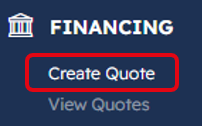
Create a quote - check out this article that will walk you through How to generate a Quote
Once you have entered the quote details (Quoting steps 1-4) - you will now complete the Underwriting and Create Payment Link sections.
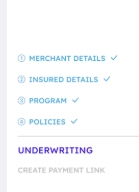 Follow the check list on the right hand side of the Quoting page to see how you are progressing.
In the Underwriting section you can review the important details of your quote as well as view the PFA.
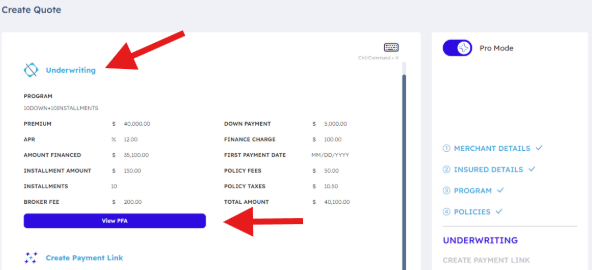
After Underwriting, you will create a Payment Link for your quote.
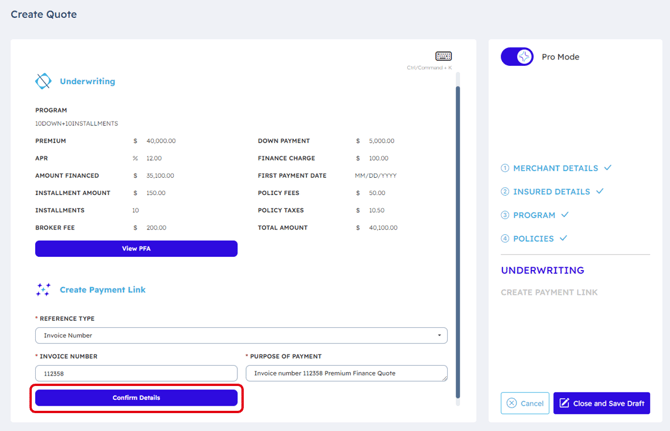
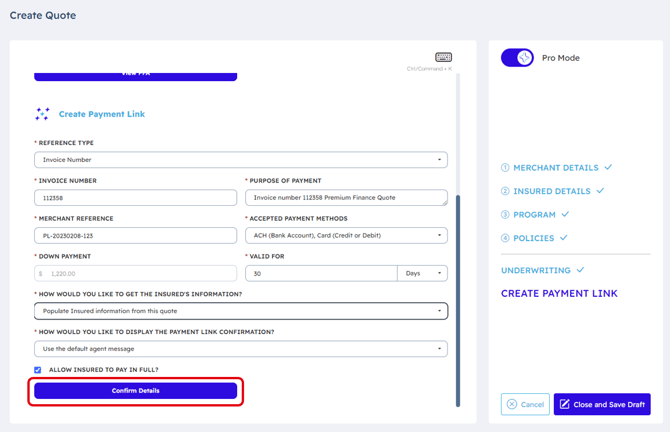
From the dropdown menu select a Reference Type: Account Number, Invoice Number, Quote ID, Policy Number or Other.
In this example we will use Invoice Number as a Reference Type. Enter the Invoice Number and a short note for the Purpose of Payment.
After reviewing Quote details click on Confirm Details
Next you will review & confirm Payment Link Details.
If any of your Payment Link details look incorrect, or need to be updated, click on the Edit Payment Link button.
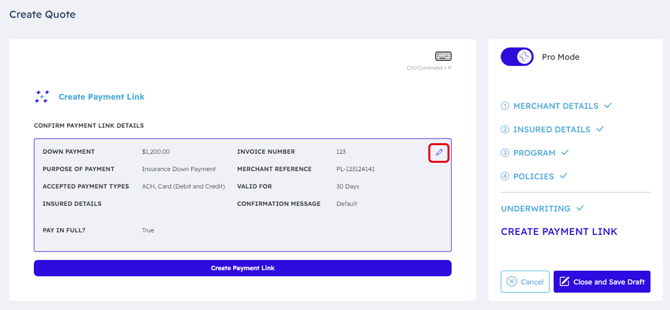
Make any desired changes to your Payment Link details then click Confirm Details.
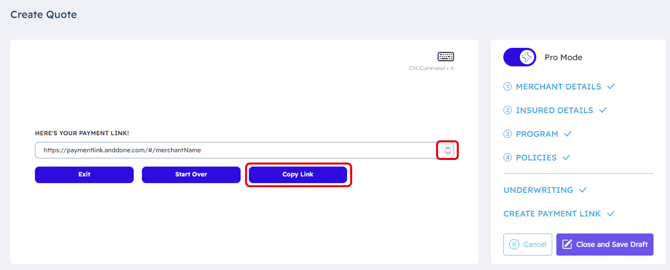
Having confirmed details, your Payment link is generated.
Click on Copy Link to easily copy the Payment Link to your clipboard. Then you can paste and send to your insured.
Accessing already generated Payment Links
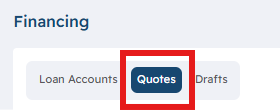 To view previously generated Payment Links for Quotes, within Financing select View Quotes, then Quotes
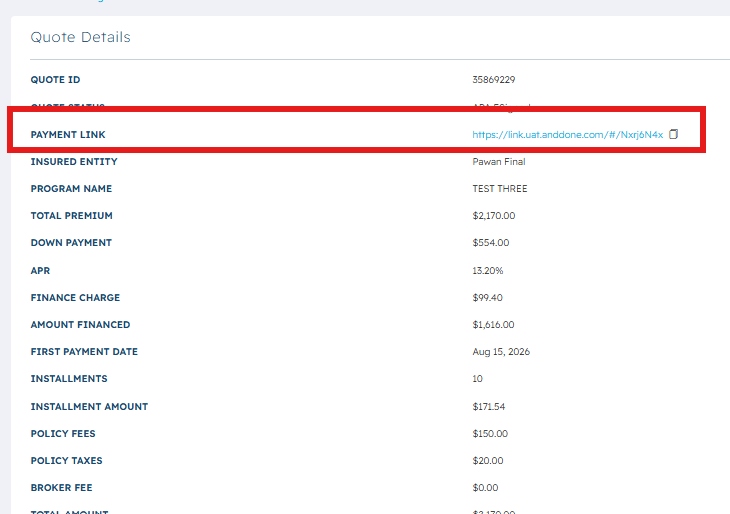
With your Quotes list, you will be able to click on the desired Quote, and within Quote details you will be able to copy the Payment Link
Related Articles
If you need assistance or have any further questions, please click here to contact our support team.