
Upon successful login (click here to reach the login page), you will be able to access the Payments dashboard displaying all transactions.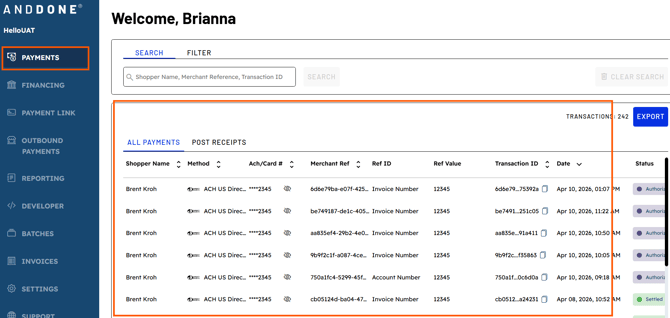
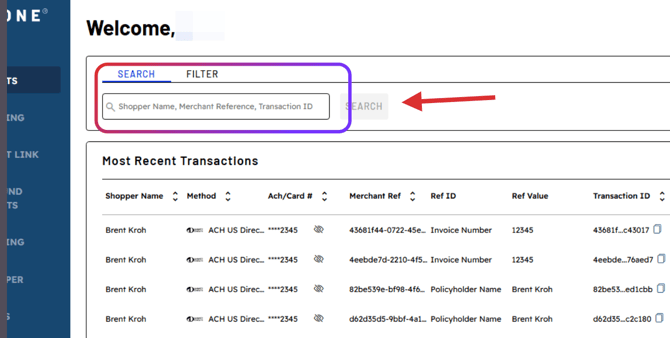
If you're searching for a specific transaction, simply utilize the search bar located at the top of the payments module.
You may search by transaction ID, Merchant Reference, or shopper name, and the system will display the desired transactions.
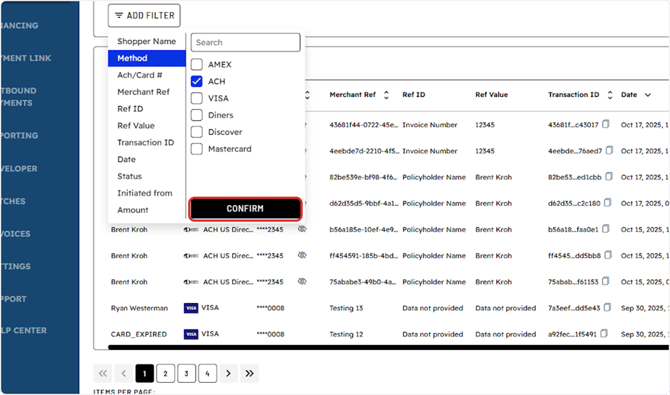
You may also utilize the Filter option to narrow your search by Date range, payment method, status, etc...
You can apply additional filters to refine your data by selecting the item in the filter menu e.g.: method, ACH/Card #, ref id, transaction id, transaction status, amount, date... Add filter box options and click Confirm
Once you have narrowed down your results click on the payment line to see additional transaction details.

Once on the Payments Details page you will see all relevant information for the transaction.
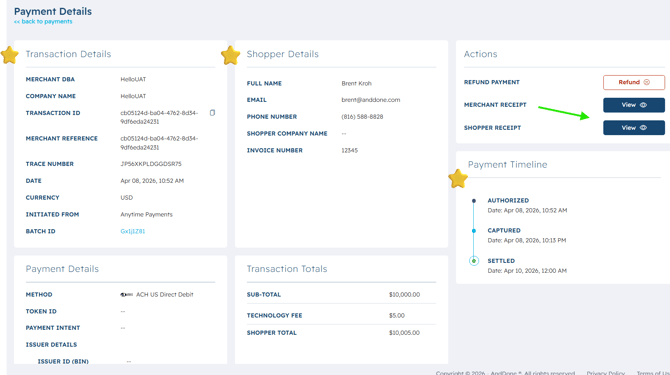
Each Payment Detail page contains transaction details, shopper information, payment details, transaction totals, and under Action Items the ability to view, print, or email the shopper and merchant receipts.
Then in the lower right hand side of the screen you will see the Payment Timeline containing the status and timestamp for each status update.
Status options include:
- Captured
-
Refund Attempted
Related Articles:
- How do I search, filter, and export payment details?
- How long does it take to process a credit card vs. ACH payment?
- What are the accepted payment types?