
Check out the how-to-video above or follow the steps below to get started!
Log into the Payments Portal
Go to portal.anddone.com and sign in using your administrator credentials.
Navigate to Settings
Once logged in, locate and click on Settings in the left-hand navigation menu.
Go to the User Management Section

In the Settings menu, select User Management to view your current user list.
Click on Users
Click Add User
In the Users section, click on the ADD USER button to begin creating a new account.

Enter User Details
Fill in the required fields for the new user.
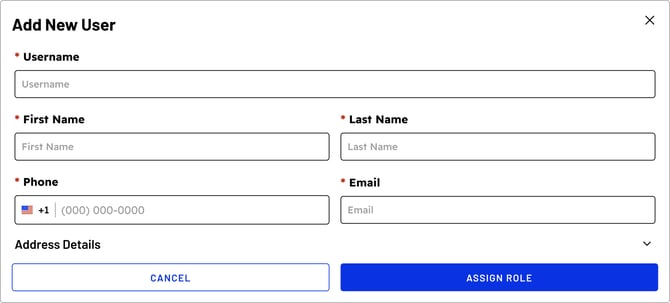
Assign a Role
Click on ASSIGN ROLE, then choose the appropriate role for the user based on their responsibilities.
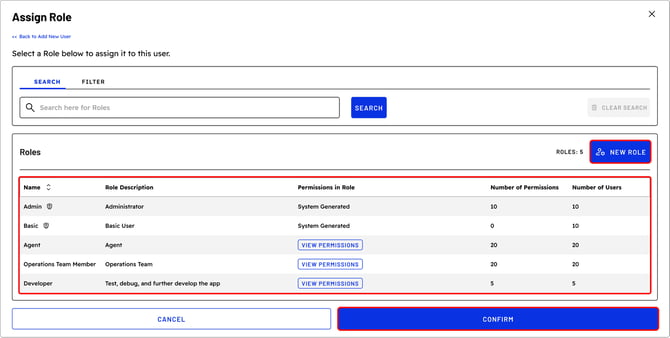
There are two user roles that are pre-generated in the portal: Admin and Basic.
-
Admin role: Default role, allows access to all features throughout the portal and the ability to edit as needed.
-
Basic role: Serves as a "view-only" user who can see feature activity but does not have the ability to utilize, alter, or edit any features.
Confirm Role Assignment
Once you've selected the role, click CONFIRM to finalize the assignment.
Activate the User (MOST important step!)
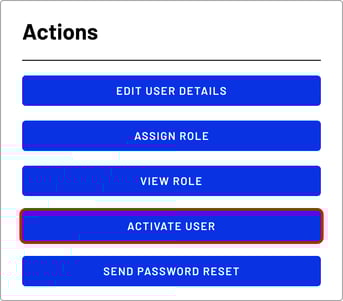
After confirming the details and role, click ACTIVATE. The user will automatically receive a registration email with their login credentials and next steps.
Related articles:
Questions? If you need assistance or have any further questions, please click here to contact our support team.