
Login to the Payments Portal click here to log in
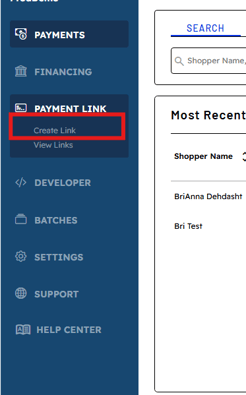
On the left hand menu bar click on Payment Link and then Create Link
Fill out the items marked with an asterisk under Transaction Details
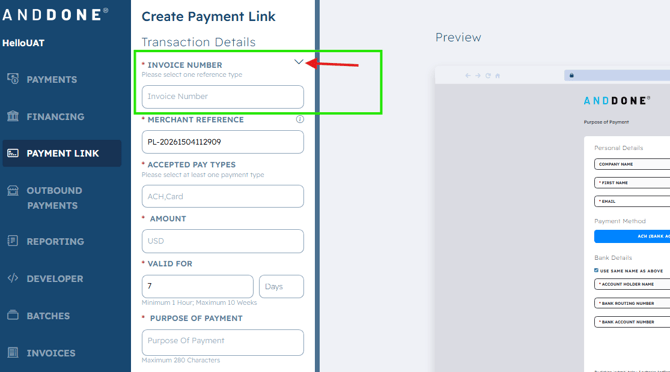
The first section- is a drop-down menu-to select one of the reference types: Account Number, Policy Number, Quote ID, or Other.
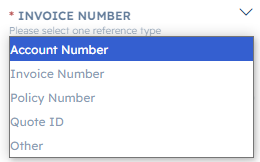
Our example selected is Invoice Number

After entering the Invoice Number, enter the payment amount.
Next enter how long the payment link should be valid. Minimum 1 hour, Maximum of 10 weeks
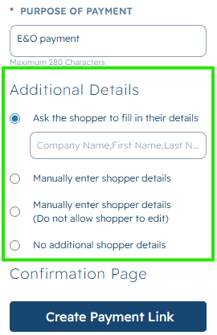
Then enter the Purpose of Payment (indicates to the shopper what the payment is for)
Use the Preview screen to see what shoppers will receive when they click the payment link.
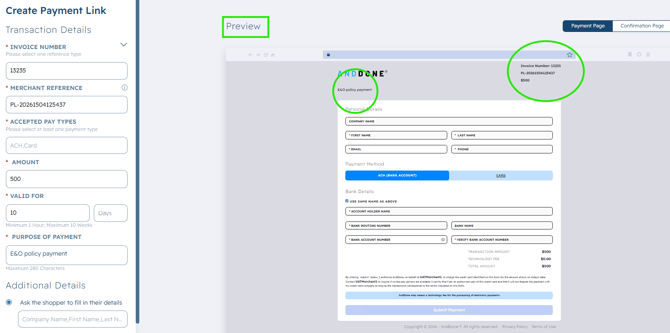
Under Additional Details, by default the Shopper will be asked to fill in their own details.
Option to adjust additional details required by shopper.
If the Shopper email address is not selected, then the shopper notification/ receipt will not automatically be delivered.
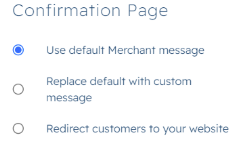
Select Confirmation Page preferences: default message, a custom message, or to redirect to your website.
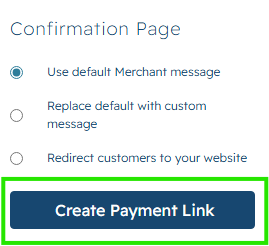
Once payment link details are confirmed, click Create Payment Link.
Then simply click Copy and paste/deliver payment link in order to send to the shopper!

If you need assistance or have any further questions, please click here to contact our support team.